

Organizations use BigID to discover, classify, and add context to their data for privacy and security. The user-friendly interface makes it easy to find the data you’re looking for. Here are three easy ways to search in BigID.
1. Free-Text Search
Best for: Finding an object, or group of objects, by keyword, title, or specific name — even within apps
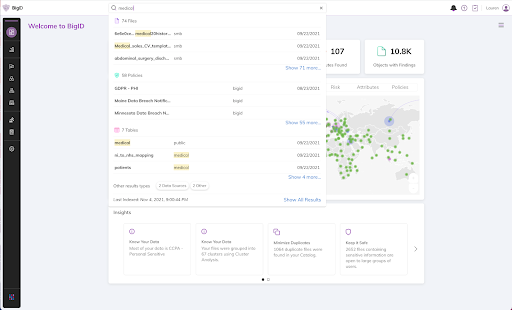
Use the search bar at the top of any BigID screen for case-insensitive, free-text search. Input any string of characters to match the text in a metadata record on BigID. The search looks for partial strings anywhere in a term, so users don’t have to know the complete word or name they’re looking for. The search will match metadata on any piece of information on a data asset, including tags, data sources, attributes, cluster names.
If a user is not sure exactly what to search for, the autosuggest feature will offer results based on the characters in the search field. Enter as few as two characters to prompt results.
Users can also easily see where match suggestions appear in the results. BigID highlights each section where the results match the search input.
Use the single search bar to find terms and attributes in the Stewardship App for an interactive business glossary. Navigate to pages in Stewardship for glossary terms and definitions.
Search results are grouped by type so you can see all the policies, tables, files, or data sources together, displayed in order by the number of matching assets. In this example, a user searches for ‘medical’ and sees 58 policy results, 12 table results, and 2 data source results — each with an option to expand and see more.
2. Filtered Results
Best for: Narrowing down search results within a selected parameter
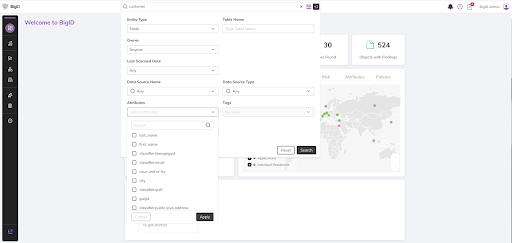
Users can scroll through the selections or use the filter fields. Use the filters’ drop-down options to narrow down results.
Combining the text search with quick filters within the search allows a user to filter first by entity type: table, file, data source, policy, or other (email, Jira tickets, ServiceNow tickets), and then narrow the choices and see the number of results.
Use the full results set or continue to narrow the list to the number of desired results. Users will see the filters that are applied to the search — and are able to add or remove filters for more customized results.
Users can:
- find all the data that’s in a specific data source and a specific location
- find any policies with a number of findings greater than X
- find all tables that include a specific attribute or tag or table name
- see all their recently viewed objects in an automatic filter to enhance work productivity and streamline navigation
3. Wildcard Search by Asterisk or Question Mark
Best for: Finding items that follow a specific format
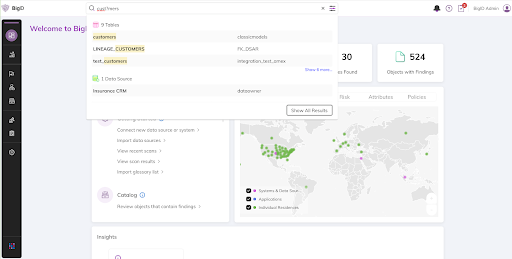
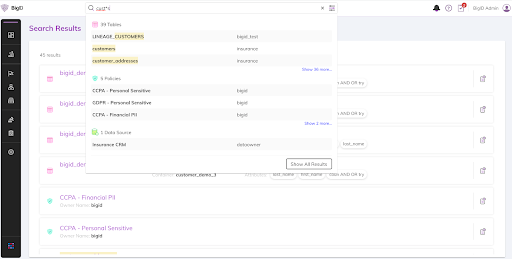
Use the question mark or asterisk to fill in one specific character or an unknown number of characters, respectively. For example, when searching for the word ‘customers,’ use a:
- question mark to fill in a single unknown letter (e.g., ‘custom?rs’)
- asterisk to fill in an incomplete search or any number of missing characters (e.g., ‘cust*rs’)
The asterisk search is a helpful tool for a user looking for a specific column of customer records that all follow a specific format for time and region.
Searching by ‘*sales’, will find all sales in all regions and all timeframes. To limit results and only find sales in Q1, for example, use ‘q1*sales’. This would limit results to objects that include ‘Q1…sales’. Results may include ‘Q1 Northeast Sales’, ‘Q1 Southwest Sales’, etc.
Alternatively, if you want all files that were named exactly the same for the northeast region for different quarterly results, search for ‘Q? Northeast Sales’. Results will find ‘Q1 Northeast Sales’, ‘Q2 Northeast Sales’, ‘Q3 Northeast Sales’, etc.
BigID search features enhances productivity to find data faster. Get a 1:1 demo with our experts to see it in action today.
Author
